6 Tips for Speeding Up a Windows Computer - Tips That Really Work
Windows computers slow down over time due to software accumulation, fragmented storage, outdated drivers, and background processes consuming resources. Rather than accepting degraded performance or purchasing new hardware, targeted optimization can restore responsiveness. These evidence-based techniques deliver measurable improvements.
1. Manage Startup Programs and Services
Many applications configure themselves to launch automatically at Windows startup, consuming memory and processing resources even when not actively used. This startup bloat significantly extends boot times and reduces available resources for applications you actually want to run.
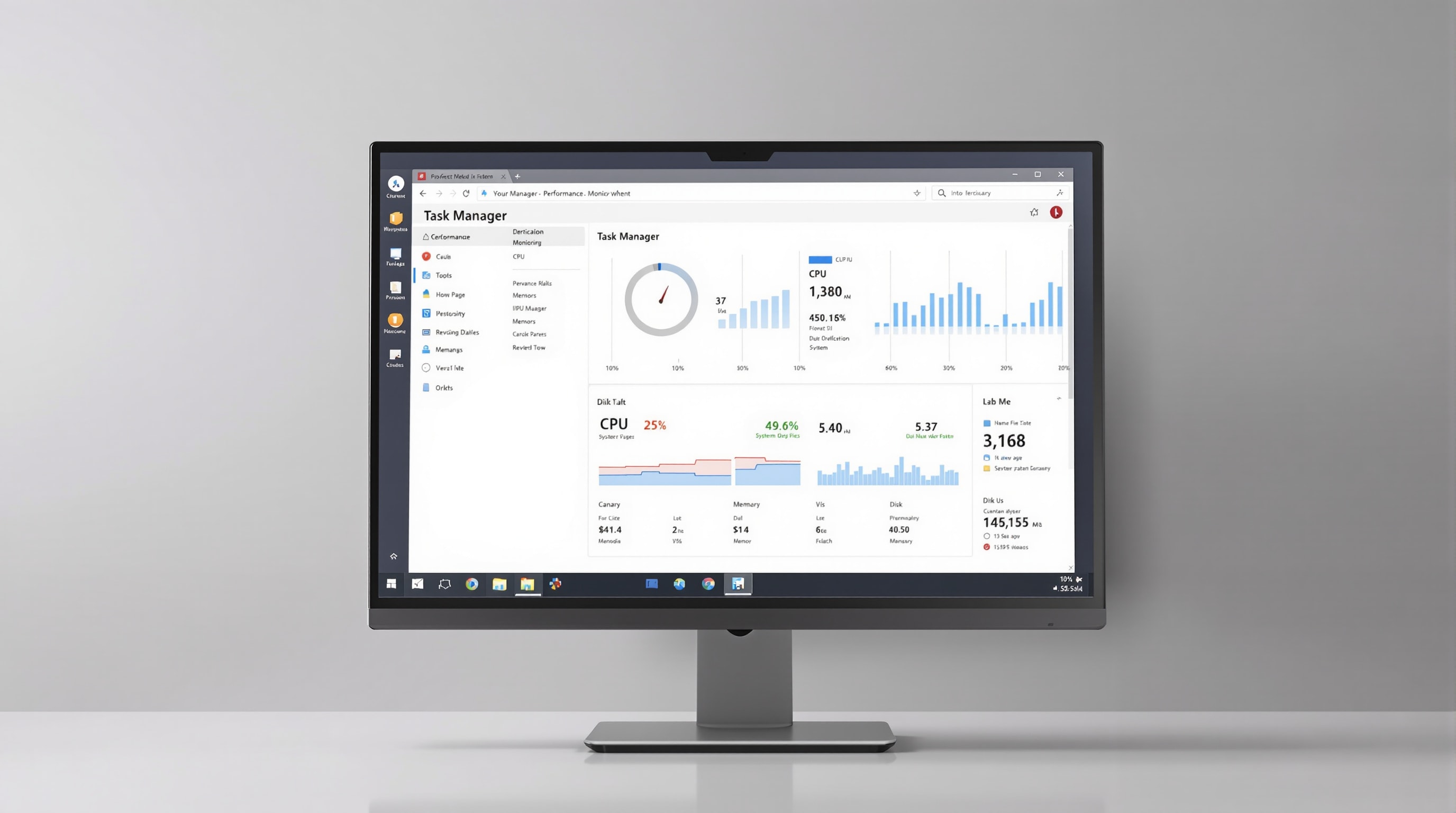
Windows Task Manager (Ctrl+Shift+Esc) provides startup program management through its Startup tab. This interface shows which programs launch at boot and their performance impact. Disable startup items you don't need immediately upon logging in. Programs remain installed and available – they simply won't launch automatically.
Focus on disabling startup items from manufacturers like printer utilities, gaming platform clients, cloud sync services, and update checkers that don't require immediate availability. Core system services should remain enabled, but third-party applications can typically launch on-demand when needed rather than continuously running.
2. Upgrade to SSD Storage
If your computer still uses a traditional hard drive (HDD), upgrading to a solid-state drive (SSD) provides the most dramatic performance improvement possible. According to Tom's Hardware, SSDs deliver 10-50x faster random access performance than HDDs, directly translating to faster boot times, application launches, and file operations.
SSD upgrades have become affordable, with adequate capacity drives available at reasonable prices. The upgrade process involves cloning your existing drive to the new SSD (using free cloning software) or performing a fresh Windows installation. Many users report this single upgrade breathes new life into computers that seemed hopelessly slow.
Even budget SSDs vastly outperform traditional hard drives for typical computer use. The elimination of mechanical seek times means applications and files load nearly instantly rather than waiting for drive heads to position and platters to rotate to the correct position.
3. Increase RAM if Operating Below System Requirements
Insufficient RAM forces Windows to use disk-based virtual memory (page file) for active programs, dramatically slowing operations even with SSD storage. Memory prices fluctuate, but RAM upgrades often provide excellent value when systems operate below optimal capacity.
Windows Task Manager's Performance tab shows current memory usage and indicates if RAM is constraining performance. If memory usage consistently exceeds 80-90% during normal use, additional RAM will likely improve performance. Modern Windows installations benefit from 16GB RAM, with 8GB being the practical minimum for comfortable multitasking.
Check your computer's maximum RAM capacity and available slots before purchasing. Some laptops have soldered memory that cannot be upgraded, while others provide accessible slots. Desktop computers typically offer straightforward RAM upgrades with simple installation procedures.
4. Remove Unused Programs and Clear Temporary Files
Over time, computers accumulate installed programs, browser extensions, and temporary files that consume storage space and potentially affect performance. Regular cleanup maintains system health and reclaims storage capacity.
Windows Settings > Apps provides a complete list of installed programs sorted by size or installation date. Review this list and uninstall applications you no longer use. Be conservative – only remove programs you recognize and know you don't need. Core Windows components and drivers should not be removed.
Windows includes Disk Cleanup utility (search for "disk cleanup" in Start menu) that identifies and removes temporary files, old Windows Update files, recycle bin contents, and other removable data. Running this utility regularly, particularly after major Windows updates, can reclaim significant storage space.
Third-party cleanup utilities exist but exercise caution. Some make exaggerated claims or include unwanted bundled software. Windows' built-in tools handle most cleanup needs safely without third-party software risks.
5. Update Drivers and Windows
Driver updates can resolve performance issues, fix bugs, and add new features to hardware components. Graphics drivers particularly benefit from regular updates, with manufacturers frequently releasing optimizations for new games and applications.
Windows Update handles most driver updates automatically, but manufacturers' websites provide the latest versions, sometimes newer than those distributed through Windows Update. For graphics cards, AMD and NVIDIA provide driver update utilities that simplify the update process.
Windows updates themselves often include performance improvements, security patches, and compatibility enhancements. While updates occasionally cause issues, delaying updates indefinitely leaves systems vulnerable to security exploits and missing performance optimizations. Enable automatic updates and review monthly update notes for significant changes.
Check whether your version of Windows still receives updates before treating maintenance as complete. Microsoft states that Windows 10 support ended on October 14, 2025. Windows 10 computers still function, but ordinary support no longer includes technical assistance, software updates, or security fixes. Microsoft recommends upgrading to Windows 11 and warns that continuing without software and security updates increases the risk from viruses and malware.
For Extended Security Updates (ESU), Microsoft says important security updates continue "until October 12, 2027". Consider ESU alongside an upgrade plan; improving startup speed or adding storage does not answer the support question. If your computer still runs Windows 10, read our guide to what Windows 10 end of support means before relying on Windows Update. Separate performance maintenance from the decision about ongoing operating-system support.
6. Adjust Visual Effects for Performance
Windows includes numerous visual effects like animations, shadows, and transparency that create polished appearance but consume system resources. On computers with limited graphics capabilities or older hardware, disabling these effects can improve responsiveness.
Access visual effects settings through System Properties > Advanced > Performance Settings, or search for "Adjust the appearance and performance of Windows." The "Adjust for best performance" option disables all visual effects, while "Custom" allows selective enabling of preferred effects while disabling others.
The performance gain from disabling visual effects is modest on modern hardware but can be noticeable on older systems or computers with integrated graphics. Test different configurations to find your preferred balance between visual appeal and performance.
Maintenance Mindset
Computer performance optimization isn't a one-time project but ongoing maintenance. Periodically review startup programs as new software installations add startup items. Monitor storage capacity and remove accumulated files before drives fill completely. Keep drivers and Windows updated to benefit from ongoing improvements.
These practices extend computer lifespan and maintain acceptable performance longer before hardware upgrades become necessary. While new computers offer better performance, properly maintained existing systems can remain productive for years beyond their initial purchase.
Understanding how computer hardware and software interact helps make informed decisions about upgrades and optimization. For insights into the electronic components that power modern computers, visit our product lines page or learn about the diverse electronics markets we serve.